
Make the most of Scot 2 Go
Scot 2 Go is built by a parent, for parents and carers. These are the tools that save the most time, so you can spend less time searching and more time out the door.
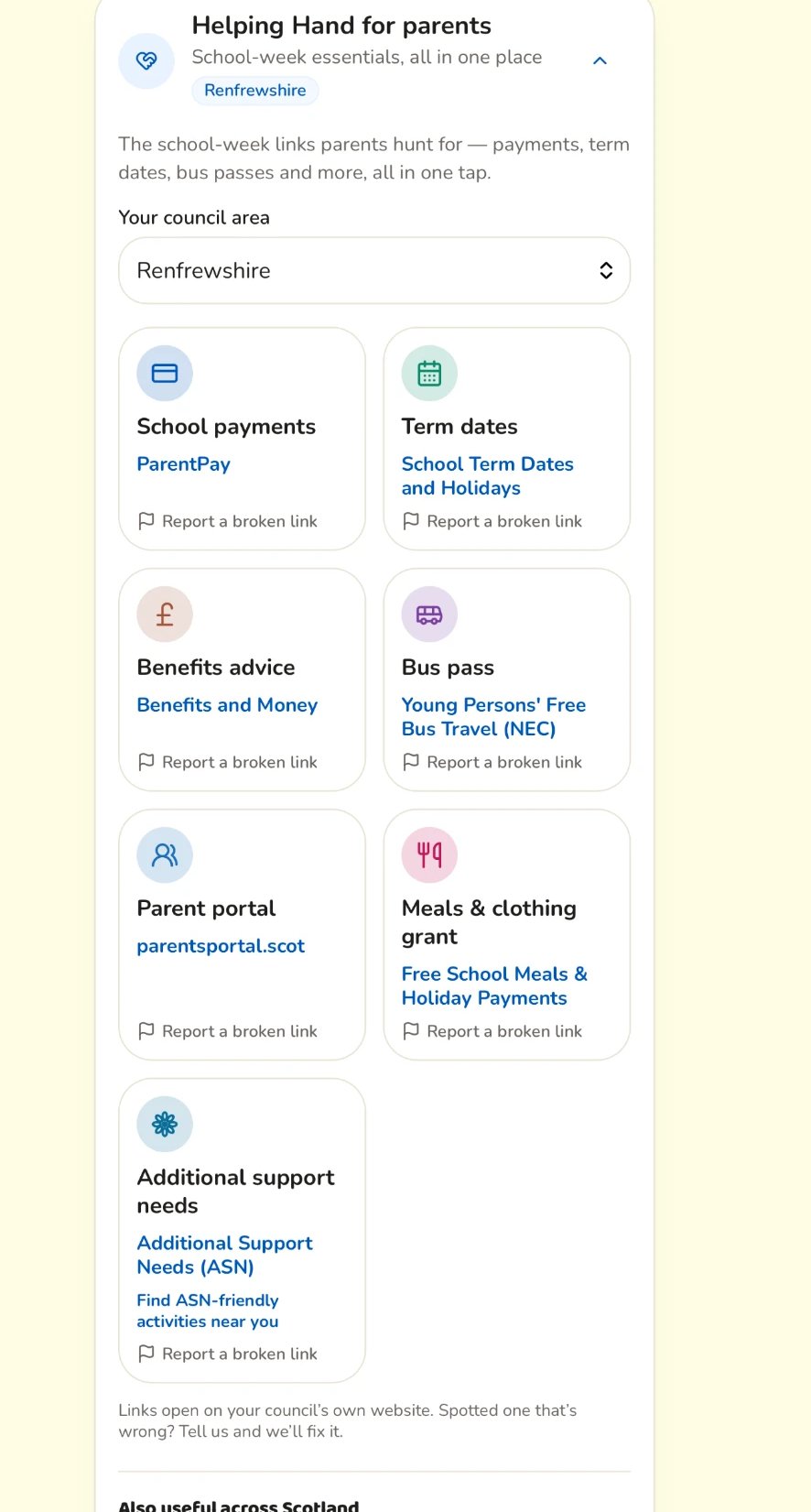
Everything for the school week, in one place
Pick your council once and Helping Hand shows the links parents ask for most: school term and holiday dates, school lunches and clothing grants, nursery places, free bus travel for under-22s and Additional Support Needs guidance. Scotland-wide help like the Scottish Child Payment and Best Start Foods is underneath. If a council link has moved, tap the flag on that card and we’ll look into it.
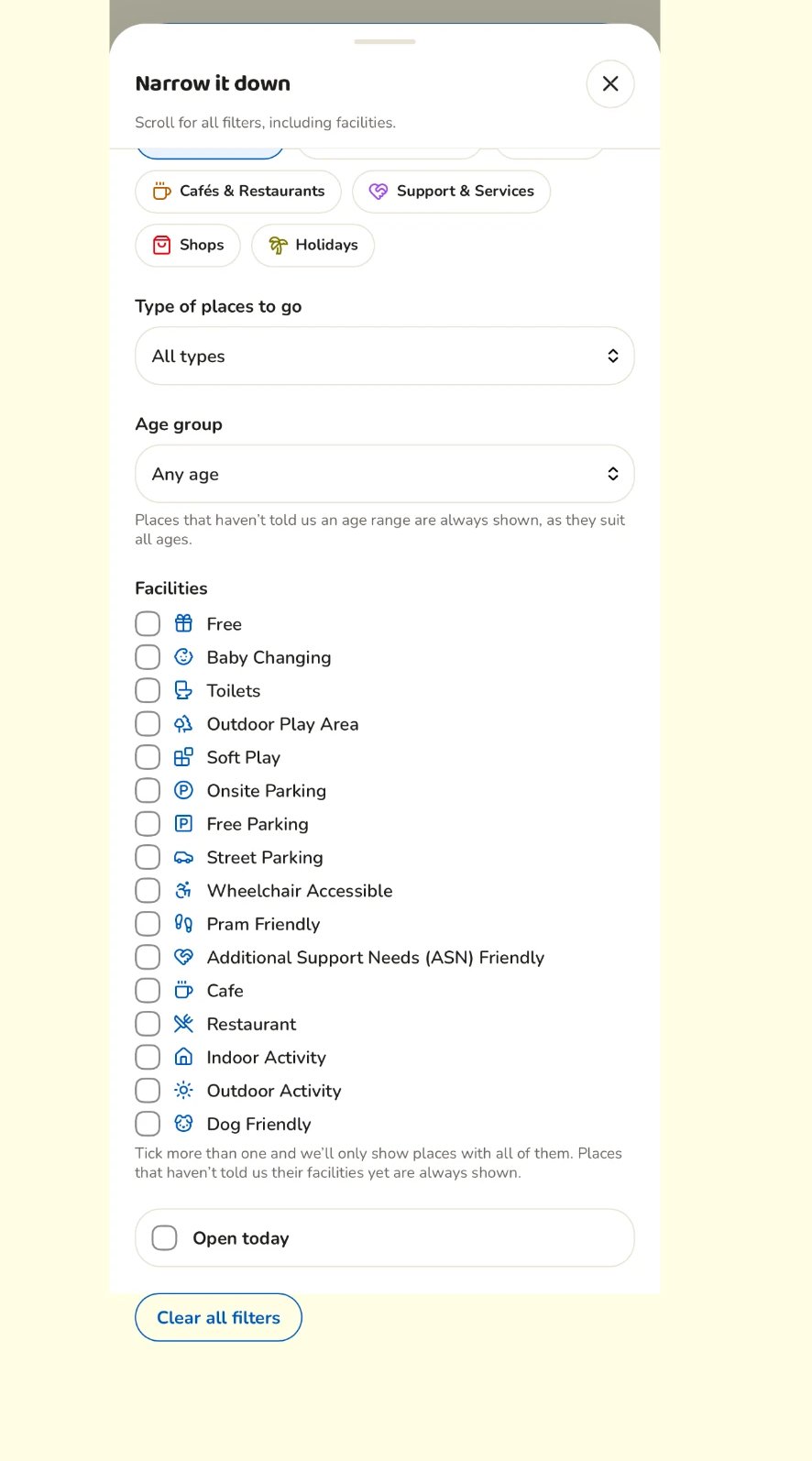
Find places that suit your family
Search by town, postcode or any of Scotland’s 32 council areas. Then filter by age group and by what matters: free, pushchair-friendly, baby changing, highchairs, parking, dog-friendly and sensory-friendly or Additional Support Needs. Switch to map view when you’re already out and want to see what’s nearby.
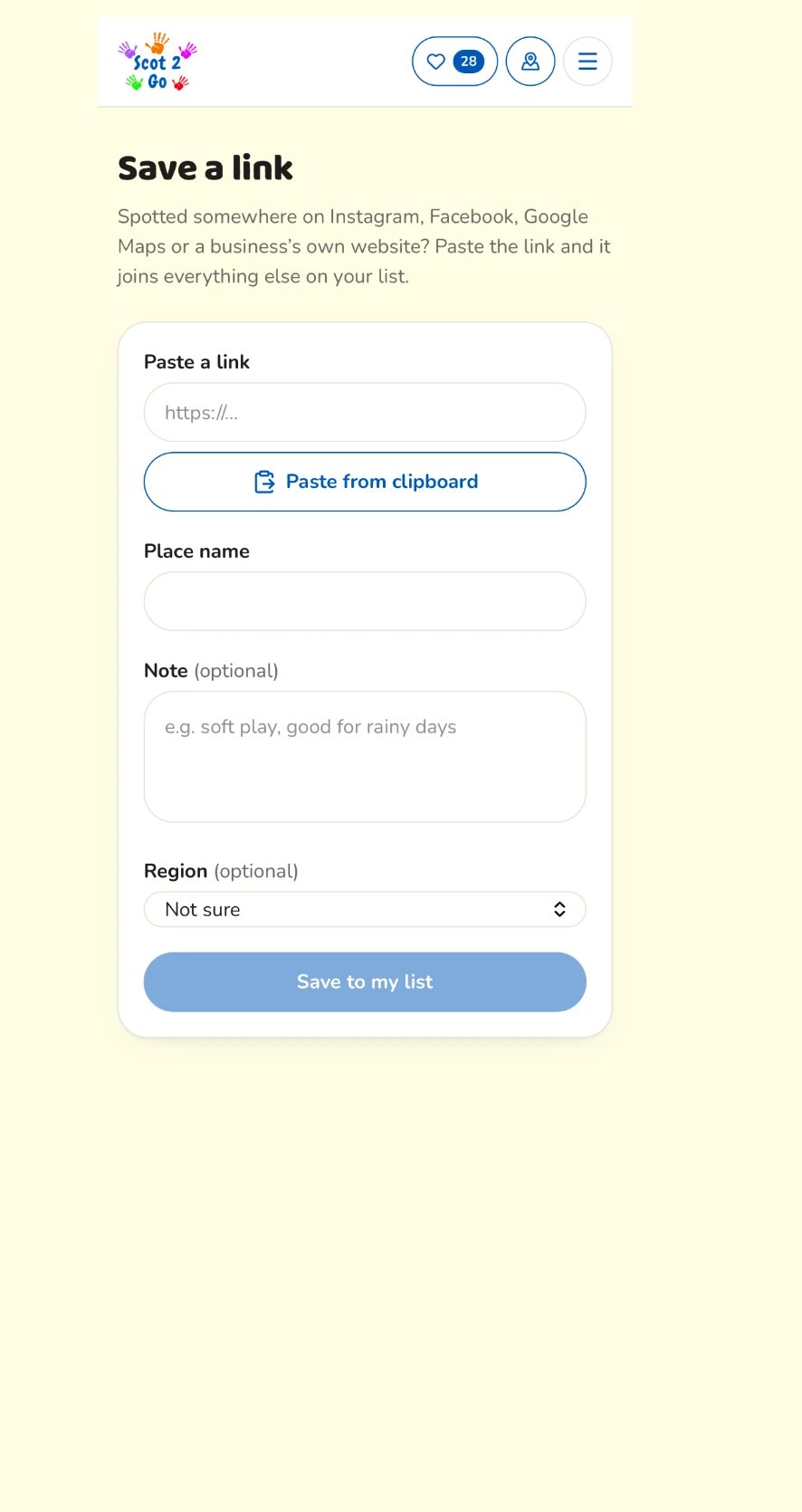
Never lose a good find
Tap the heart on any place to save it for later. Create a free account and your saved places and links will be waiting for you whenever you sign in, on any device.
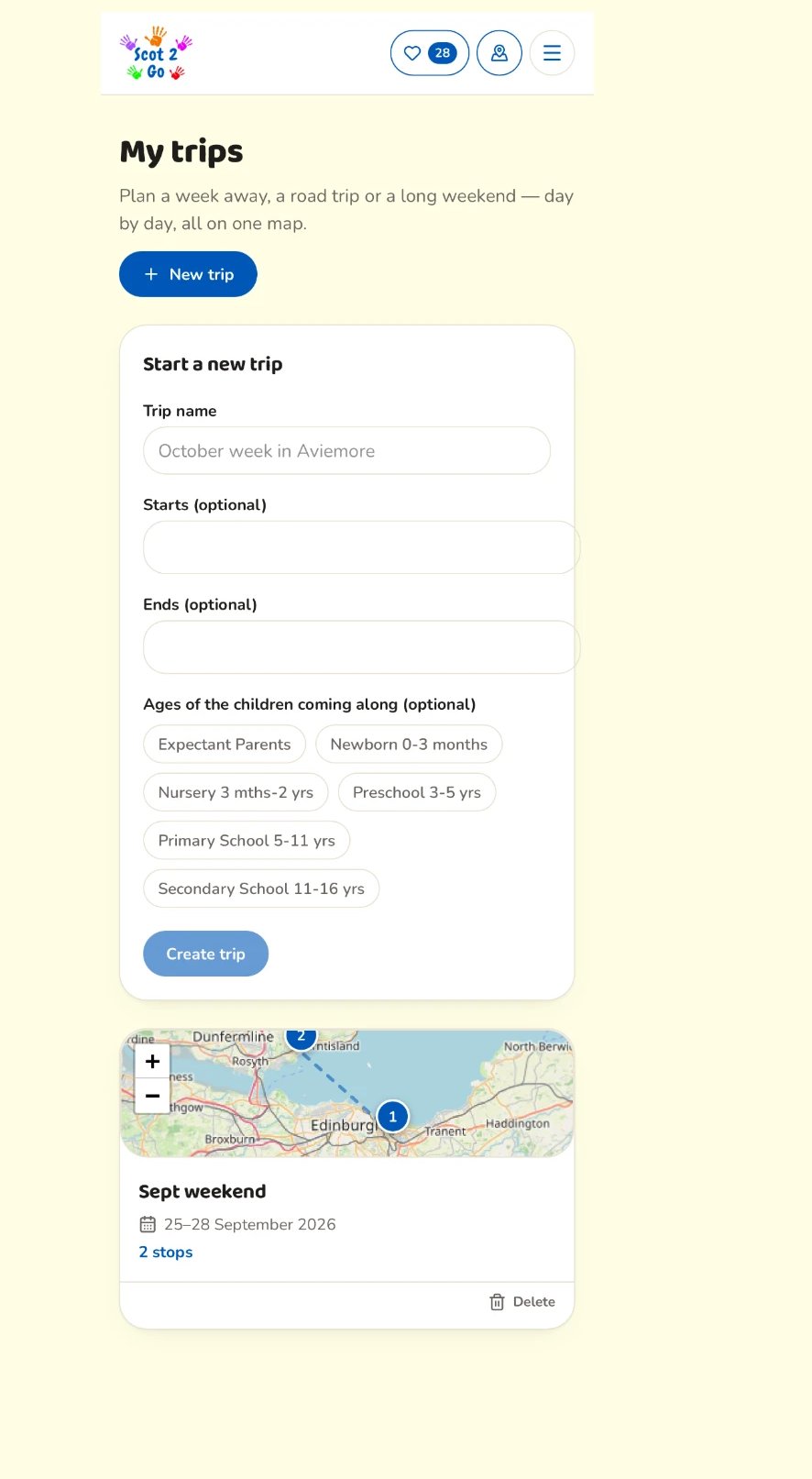
Plan a whole day in one place
Create a trip, add your saved places, put the stops in order and see the route on a map. Tap Get directions to open Google Maps, Apple Maps or Waze with the postcode already filled in. Share Trip creates a private link, so grandparents or friends can see the plan without needing an account.
Add Scot 2 Go to your home screen
No app store needed. On iPhone or iPad, open Scot 2 Go in Safari, tap Share, then “Add to Home Screen”. On Android, open it in Chrome, tap the three dots, then “Install app” or “Add to Home Screen”. You get a quick-launch icon, and your saved places are easier to reach when signal is patchy.